
To find a printer's IP address, print its network configuration page or open the network menu on its screen. You can also read it in your computer's printer settings (Windows 11 or macOS) or in your router's list of connected devices. The answer is a private address on your home network, such as 192.168.1.50. It is not the public IP that websites see, and it can change unless you reserve it in the router.
Four ways to find it
| Where you look | Works when | What you get |
|---|---|---|
| Printer screen or configuration page | Always, if the printer is on the network | The address the printer really has right now |
| Windows 11 printer properties | The printer is already installed on the PC | The address Windows uses, which can be old |
| macOS Printers & Scanners | The printer is already added on the Mac | Often a web page link or a .local name |
| Router device list | Any network printer | Name, IP and hardware address of each device |
Start with the printer itself. It is the only source that cannot be out of date.
1. On the printer: screen or configuration page
Printers with a screen usually show the address under a menu called Network, Wireless, Wi‑Fi or Setup, then something like "View network settings" or "TCP/IP". The wording differs by brand, so check the manual for your model.
Printers without a screen can print a network configuration page (also called a network report or settings report). On many models you hold a button, such as Information or Wi‑Fi, for a few seconds. Look for the line "IP address" or "IPv4 address".
Write the number down and note the line for "Hardware address" or "MAC address" too. You will need it in step 4.
2. On Windows 11
Microsoft's current path is Start > Settings > Bluetooth & devices > Printers & scanners, then select your printer and choose Printer properties (Microsoft Support). In that window:
- Ports tab: a printer added by address uses a TCP/IP port. Its name or Configure Port shows the printer's IP address (Dell's Windows 11 guide walks through this screen).
- General tab, Location field: for printers Windows found by itself, this can hold a link like
http://192.168.1.50:80/WebServices/Device. The number in it is the printer's address. - Web Services tab: printers added through Web Services for Devices (WSD) may show the IP address here instead of on the Ports tab.
If every field is empty, Windows talks to the printer by name, not by number. Use the printer itself or the router instead.
3. On a Mac
Open Apple menu > System Settings > Printers & Scanners, click your printer, then open Options & Supplies (Apple Support). Depending on the printer, the General tab shows a location, a device address, or a Show Printer Web Page button. That button opens the printer's own settings page in your browser, and the address bar then shows its IP.
If the address bar shows a name ending in .local, the Mac found the printer through Bonjour (the AirPrint discovery that Apple uses) and never needed the number. The printer's network page or your router will still give you the numeric address.
4. In your router's device list
Sign in to your router's admin page. The address of that page is your default gateway. Look for a list called Connected devices, Clients, Device list or DHCP clients. Find the printer by its name (often the brand plus model) or by matching the hardware address you noted in step 1. Every device in that list has a private address, which is explained in public vs private IP address.
What about the command line?
Many guides suggest arp -a or netstat -r. Be careful with both:
arp -a(Windows and macOS) only lists devices your computer has talked to recently. Print a test page orpingthe expected address first, then match the printer's hardware address in the list.netstat -rshows your computer's routes (where traffic goes), not the devices on your network. It will not reveal a printer.
Not your public IP
Our IP check shows the address the internet sees for your whole home. Here it is from our own test, with the real address replaced by the documentation address 203.0.113.42 (RFC 5737):
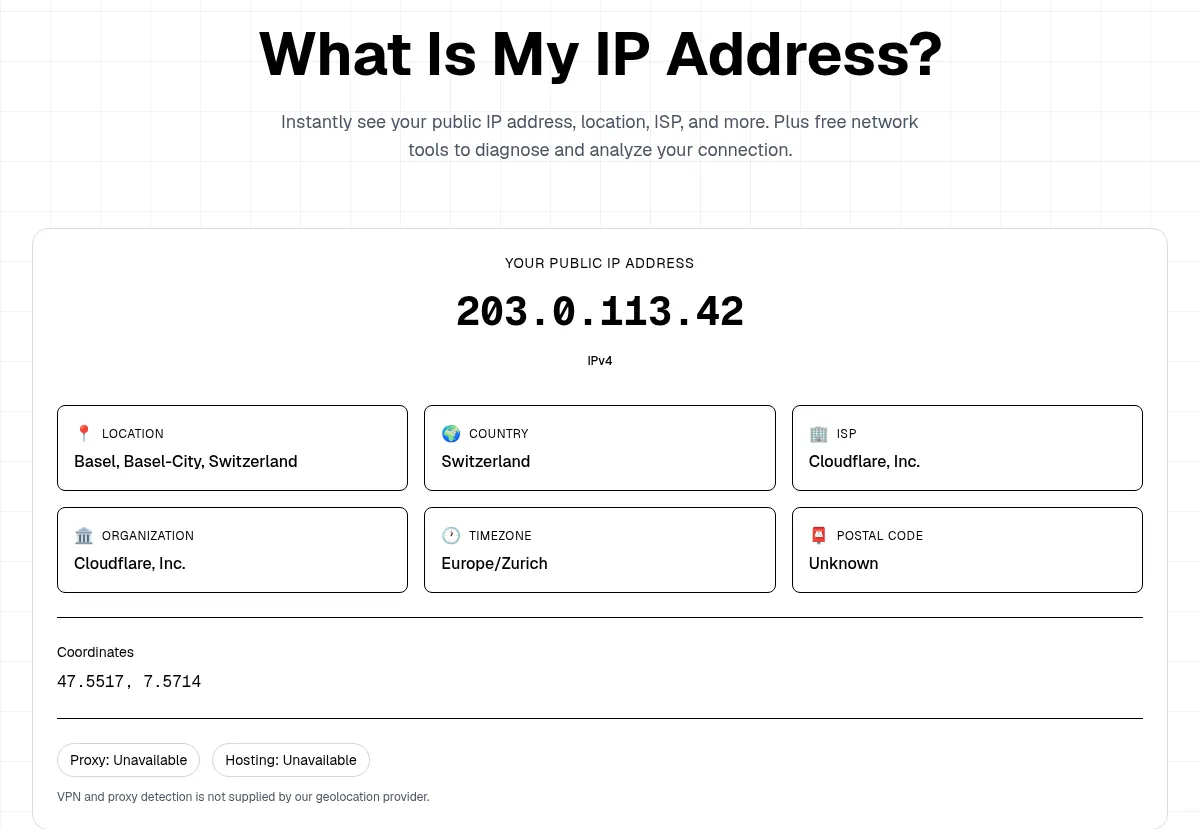
That number belongs to your router and is shared by every device behind it, including the printer. A printer you use at home has a private address instead, from the ranges in RFC 1918 such as 192.168.x.x or 10.x.x.x. If you paste a printer address into our IP lookup, it answers "This is a private or reserved address" instead of a location, because a private address is not on the public internet.
Printer IP not showing up or looks wrong? Read the address
The address you found already tells you what is wrong:
0.0.0.0or blank: the printer has no network address. It is not connected. Reconnect it to Wi‑Fi (or check the cable), then print the configuration page again.169.254.x.x: the printer gave itself a link-local address (RFC 3927) because nothing answered its request for one. The router's DHCP did not reach it. Restart the router, wait until it is up, then restart the printer.- Different first numbers from your computer (printer
192.168.0.20, laptop192.168.1.23): the two are on different networks. Common causes are a guest Wi‑Fi, which often blocks devices from seeing each other, a second router, or an extender with its own network. Join the printer and the computer to the same main network. The subnet mask guide shows how to compare the two. - An address from the printer's Wi‑Fi Direct network: Wi‑Fi Direct is a separate, direct link between one device and the printer. That address is not on your home network. Use the printer's normal Wi‑Fi or Ethernet address for your router and computers.
- No address anywhere and not in the router list: the printer is off, asleep, connected only by USB (a USB printer has no network address), or on another network. Wake it and check again.
Stop the address from changing
Your router lends addresses for a limited time. After a power cut, the printer can come back with a different number, and a computer that still points to the old one stops printing. Two fixes:
- DHCP reservation (best): in the router, tie the printer's hardware address to one IP. Nothing on the printer changes. The DHCP reservation section explains this.
- Manual address on the printer: pick a number outside the router's DHCP pool, or two devices may end up with the same address.
Changing the port on your computer only tells the computer where to look. It does not change the printer's address. Fix the address on the router or printer first, then update the port or add the printer again.