
A MAC address (Media Access Control address) is the hardware ID of a network adapter: the Wi-Fi chip or Ethernet port in your phone, laptop, or TV. It is 48 bits long, usually written as 12 hexadecimal digits such as 00:00:5E:00:53:2A (a documentation example from RFC 7042), and it is only used to deliver data inside your local network, between your device and your router. Websites never see it. They see your public IP address instead.
How a MAC address is built
A factory MAC address has two halves:
- The first 6 hex digits (24 bits) are the OUI (Organizationally Unique Identifier). The IEEE Registration Authority assigns it to the manufacturer (IEEE MA-L/OUI). That is why a router's device list can often guess "Apple" or "Samsung" from the address.
- The last 6 hex digits (24 bits) are picked by the manufacturer for that one adapter.
The 48-bit, 12-hex-digit format is the standard Wi-Fi and Ethernet form (Android Open Source Project). A device with Wi-Fi and Ethernet has one MAC per adapter.
MAC address vs IP address
| MAC address | IP address | |
|---|---|---|
| Network layer | Layer 2 (Wi-Fi / Ethernet link) | Layer 3 (internet routing) |
| Who assigns it | Manufacturer, or your device when it uses a private/random address | Your router (private LAN IP) and your ISP (public IP) |
| Scope | Your local network only | Private IP on the LAN; public IP on the whole internet |
| Does it change? | Factory address is fixed; private addresses can differ per network | Changes when you switch networks, and often when the ISP reassigns it |
| What a website sees | Nothing | Your public IP |
In short: the MAC gets a packet to the next box on your network; the IP gets it across the internet. For the two kinds of IP, see public vs private IP address.
What websites see: your IP, not your MAC
Every time data leaves your home, your router (your default gateway) wraps it in a new link-layer frame with the router's own MAC address and, through NAT, swaps your private IP for the public one. Each hop does the same. Your device's MAC stays behind at the first hop, so a server on the internet only receives your public IP. Browsers also give web pages no way to read the adapter's MAC.
One old exception: early IPv6 setups built the end of your IPv6 address from the MAC (the EUI-64 format in RFC 4291), so it could leak inside the IP. Current Windows, macOS, iOS and Android use random IPv6 interface IDs instead.
Here is our own IP check when we tested it. The real IP was replaced with the documentation address 203.0.113.42 (RFC 5737):
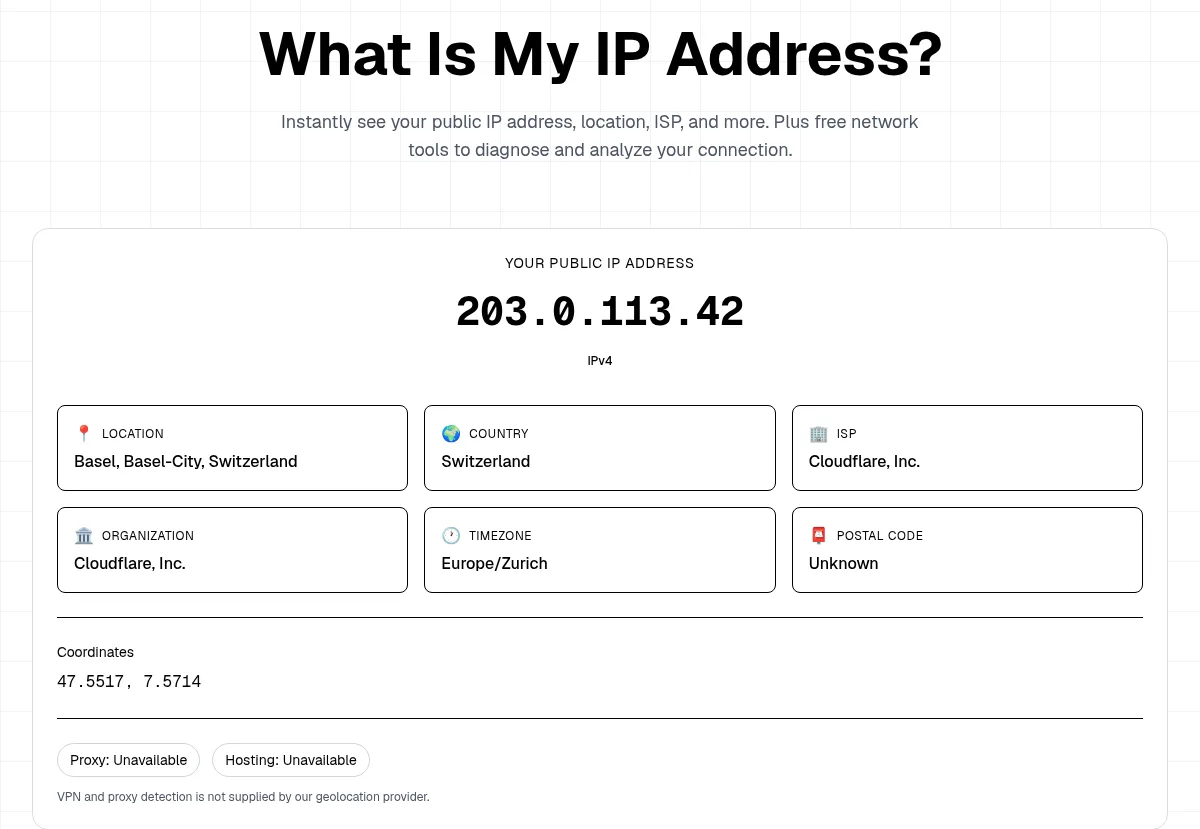
The fields a site can show are the IP address and what can be looked up from it: an approximate location, country, ISP, organization, timezone, and coordinates. There is no MAC field, because the MAC never reaches the server. You can look up any other IP the same way with IP lookup. What that IP can and cannot give away is covered in what your IP address reveals.
How to find your MAC address
Windows
- Open Command Prompt and run
ipconfig /all. Under your Wi-Fi or Ethernet adapter, the MAC is listed as Physical Address. - Or run
getmacfor a short list of adapters and their addresses.
macOS
- System Settings > Network > Wi-Fi > Details > Hardware shows the MAC address. On macOS Sequoia 15 or later the same pane has a Private Wi-Fi Address setting, so the address used on that network can differ.
- In Terminal:
ifconfig en0 | grep ether. On most Macsen0is Wi-Fi; on some desktops with a built-in Ethernet port it is the wired adapter, so checken1too.
iPhone and iPad
- Settings > General > About > Wi-Fi Address shows the device's hardware MAC.
- Settings > Wi-Fi > ⓘ next to the network > Private Wi-Fi Address shows the address the phone actually uses on that network, which is usually different.
Android
- Settings > About phone (sometimes under Status) lists the device Wi-Fi MAC address. Menu names vary by maker.
- For the address used on your current network: Settings > Network & internet > Internet > gear next to the network. Under Privacy, Use randomized MAC is the default; the network details show that random address.
Router device list
Log in to your router's admin page and open Connected devices, DHCP clients, or Device list. Each entry shows a name, a private IP, and a MAC, including smart TVs and consoles.
Private and random MAC addresses
A MAC that is the same on every network lets Wi-Fi operators recognise the same phone at a café, shop, or airport. So phones now hide it by default:
- iPhone and iPad use a different Private Wi-Fi Address per network since iOS 14. From iOS 18, you can pick Off, Fixed, or Rotating. Rotating changes the address about every 2 weeks and is the default on open or weakly secured networks (Apple Support).
- Android uses a randomized MAC by default since Android 10, normally one stable random address per network until a factory reset (Android Open Source Project).
- Windows 10 and 11 have an optional Random hardware addresses switch in the Wi-Fi settings.
Quick tell: a random address sets the "locally administered" bit, so its second hex digit is 2, 6, A, or E. A factory address usually does not.
When to turn it off for one network: if your router uses MAC filtering, a DHCP reservation, or parental controls tied to a MAC, those rules break when the address changes. Turn it off (or use Fixed) only for that home network, and leave it on for public Wi-Fi.
Why would someone want your MAC address?
A common forum question, usually after an app or "support agent" asks for it. Legitimate reasons are all local:
- Your ISP or IT team may register a modem or laptop by MAC so it can get online.
- Your router uses it for MAC filtering, fixed local IPs, and parental-control schedules.
- Venue Wi-Fi and location analytics can count returning devices by MAC. That is exactly what private addresses prevent.
- Someone on the same Wi-Fi could copy an allowed MAC to get past a MAC filter, which is why a MAC filter is not real security. Use a strong Wi-Fi password.
What a stranger on the internet cannot do with your MAC alone is find your home, see your IP, or hack your device from afar. It does not travel past your router. If a caller or pop-up asks for your MAC to "fix your computer", treat it as a scam signal.
Bottom line
A MAC address is a local hardware ID, 12 hex digits, that only your network and router see. Your IP address is what the internet sees. Find the MAC with ipconfig /all, System Settings, your phone's Wi-Fi details, or the router's device list. Keep private/random addresses on for public Wi-Fi. To see what websites really get from you, run the IP check.