
To flush DNS on Windows, open Command Prompt and run ipconfig /flushdns; you should see "Successfully flushed the DNS Resolver Cache." That empties the list of names your PC has already looked up, so the next visit asks your DNS resolver again. It does not clear your browser's own cache, your router, or the resolver run by your ISP or a public DNS service. If a site still points to the old place after a flush, one of those other caches is the reason, and the fix is to wait or check from outside your device.
Flush DNS on Windows (ipconfig /flushdns)
- Press the Windows key, type
cmd, and open Command Prompt. - Type
ipconfig /flushdnsand press Enter. - Look for the line "Successfully flushed the DNS Resolver Cache."
If Windows answers "The requested operation requires elevation", close the window, right-click Command Prompt, choose Run as administrator, and run the command again.
In PowerShell the same job is Clear-DnsClientCache. Microsoft documents both: ipconfig ("Flushes and resets the contents of the DNS client resolver cache") and Clear-DnsClientCache. To see what was cached before you clear it, run ipconfig /displaydns first.
Many guides add ipconfig /release and ipconfig /renew. Those ask your router for a new local address. They do not touch DNS, and they drop your connection for a moment, so only use them when you are fixing an addressing problem as well.
Flush DNS on macOS
Open Terminal and run:
sudo dscacheutil -flushcache; sudo killall -HUP mDNSResponder
Enter your Mac password when asked. Nothing is printed when it works. The cPanel guide to clearing your DNS cache lists sudo killall -HUP mDNSResponder for macOS 10.10.4 and later; many guides put dscacheutil -flushcache in front of it, as above.
Flush DNS on Linux
Most desktop distributions use systemd-resolved. Run:
resolvectl flush-caches
Older releases use sudo systemd-resolve --flush-caches. The commands are in the resolvectl manual. If your system runs a different local cache, such as dnsmasq or nscd, restart that service instead. If there is no local cache at all, there is nothing to flush on the machine.
Clear Chrome's own DNS cache
Chrome and Edge keep a small host cache of their own. Open chrome://net-internals/#dns (or edge://net-internals/#dns) and click Clear host cache. Then close all browser windows and open the site again, because open connections can keep using the old address.
Phones: iPhone and Android
Neither has a flush command. Turn airplane mode on for about ten seconds and off again, or restart the phone. Both drop the phone's cached answers. If the phone uses Private DNS (Android) or a DNS profile (iPhone), the answers come from that service, so its cache applies too.
Why flushing sometimes changes nothing (our test)
Your computer is only the first of several caches. After a flush, your PC asks its resolver, which is usually your router, which asks your ISP's resolver or a public one like Cloudflare (1.1.1.1) or Google Public DNS. Each of them may answer from its own cache until that record's TTL (time to live) runs out. TTL is the number of seconds an answer may be reused, defined in RFC 1035.
To see how different those caches can be, we asked Cloudflare and Google for the same names through their public DNS-over-HTTPS JSON endpoints (Cloudflare, Google) on 16 November 2026, twice, about 60 seconds apart. Sample: three names, two resolvers, two rounds.
| Name | Cloudflare | |
|---|---|---|
| www.wikipedia.org (CNAME, remaining TTL) | 86,181 s | 13,448 s |
| www.wikipedia.org (address returned) | 208.80.154.224 | 185.15.58.224 |
| example.com (A, remaining TTL, round 1 / round 2) | 164 s / 190 s | 300 s / 300 s |
Two big resolvers gave different addresses for the same name at the same minute, and their remaining cache time differed by almost a day. Cloudflare's TTL for example.com even went up between rounds, which means the second answer came from a different cache node. None of that lives on your computer, so ipconfig /flushdns cannot change it.
What this means for you:
- A site moved and you still reach the old one: flush your device and the browser, then wait out the old TTL. A DNS change spreads as caches expire, which our guide to DNS propagation explains.
- One device fails and others work: a flush on that device is a good first step.
- Every device on your network fails: restart the router, or test from mobile data. If a site still will not load, work through whether the problem is the site, DNS or your IP.
Check the result after you flush
A flush gives no sign of whether you now get the right answer. Look the name up from outside your device and compare.
Open our DNS Lookup, type the domain, and press Lookup DNS. It asks the site's own server resolver and shows the A, AAAA, MX, NS, TXT, CNAME and SOA records it gets back. It shows record values, not TTLs and not your device's DNS path.
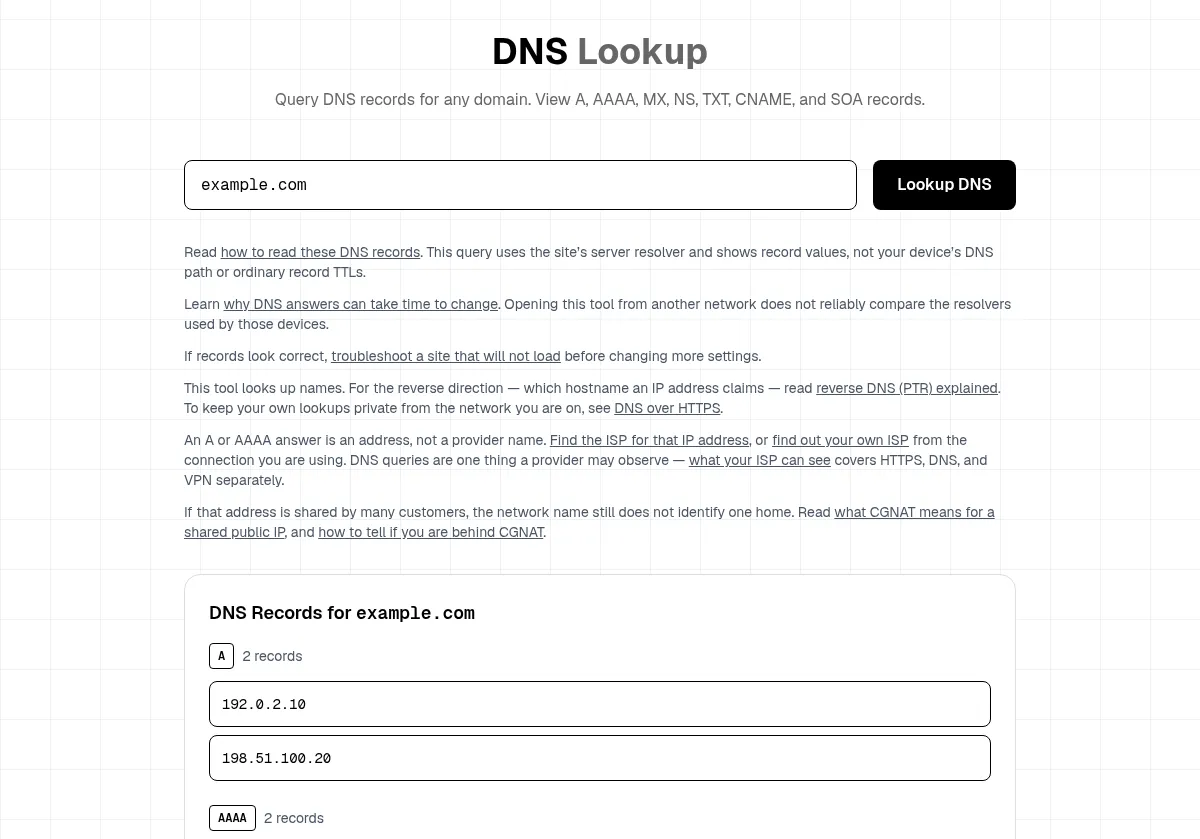
Then compare that with what your computer sees. On Windows, run nslookup example.com in the same Command Prompt. If the addresses match, your device is up to date. If they differ right after a flush, your router or ISP resolver is still serving a cached answer. Our guide on how to read DNS lookup results explains each record type.
Is it safe to flush DNS?
Yes. A flush only deletes cached lookups. The next page load is a few milliseconds slower while your device asks again, and that is all. It does not delete your browsing history, saved passwords or cookies, and it does not change your public IP address.
Summary
Run ipconfig /flushdns on Windows, sudo dscacheutil -flushcache; sudo killall -HUP mDNSResponder on a Mac, resolvectl flush-caches on Linux, and clear the browser's host cache too. If nothing changes, the old answer is cached further up the chain, and only time or a different resolver fixes that. Confirm with the DNS Lookup before you change any settings.