
To check your IP, open What Is My IP and read the number at the top: that is the public address websites see right now. The address and the network name are facts taken from your connection. The town, postal code and coordinates are estimates from a location database, so treat them as a rough area, not your street. To check a different address, paste it into the IP Lookup tool.
The rest of this guide shows how to check the result itself: what to trust, why two checkers can disagree, and how to check from a terminal or after you switch on a VPN.
What a "check my IP" result shows
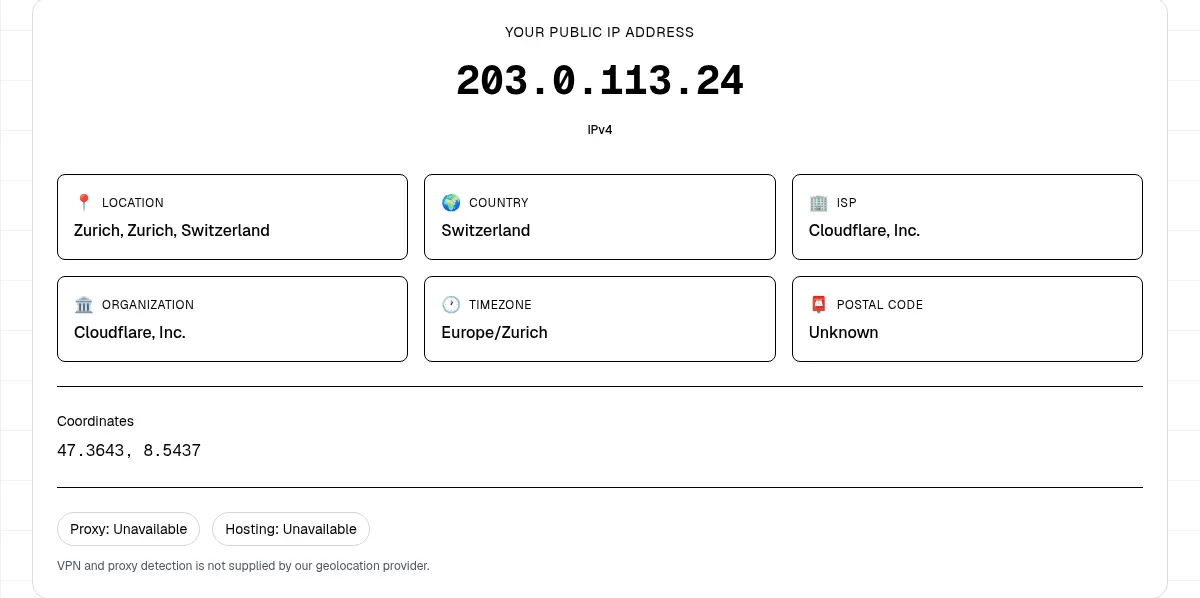
This is our own result card from a test machine on 24 Nov 2026. We replaced the real address with 203.0.113.24, a documentation address that is never used on the internet (RFC 5737). Each line comes from a different kind of source:
- Public IP and IPv4/IPv6 tag. Read from the request your browser just sent. This is the fact the page exists for.
- ISP and organization. The network the address is registered to. Here it says Cloudflare, because that test machine's traffic left through Cloudflare's network, not a home provider. On a home line you would see your provider, or the network that runs its addresses.
- Location, country, timezone, postal code, coordinates. Looked up in a geolocation database. Our site uses GeoJS with MaxMind GeoLite data. Country is usually right. City is a best guess. Postal code often says Unknown.
- Proxy and Hosting: Unavailable. Our data source does not supply a VPN or proxy verdict, so we do not show one.
We checked one connection on four sites
On 24 Nov 2026 we opened four checkers from one home connection in Switzerland, one after another: FindMyIP, 2ip.io, CleanTalk and ExpressVPN. Three of them rank on the first page of Google for "check my ip".
| What we compared | Result |
|---|---|
| Public IP address | The same on all four |
| Country | Switzerland on all four |
| Town | FindMyIP and 2ip.io named the same town. ExpressVPN named a different town. CleanTalk listed two cities. |
Sample: one connection, one morning, four sites. It does not show which site is "more accurate" in general. It shows the normal pattern: the address is a measurement, the town is a database guess, and each site may use a different database or a different version of it. If two checkers show the same IP but different towns, nothing is wrong with your connection. How accurate IP geolocation is explains where those guesses come from.
If two checkers show different IP addresses, that is a real difference worth a closer look. Common reasons are below.
Why two checkers can show different IPs
- IPv4 on one, IPv6 on the other. Many connections have both. One site may answer over IPv6, the other over IPv4. Read the tag under the number. What is my IPv4 address shows how to get the IPv4 one.
- A VPN, proxy or privacy relay is on for one app only. A browser extension or a browser's built-in relay changes the address for that browser, not for the rest of the computer.
- Mobile data vs Wi-Fi. Your phone may have switched networks between the two checks.
- A shared address pool. Some providers send traffic out through several addresses, or share one address between many customers with CGNAT.
Check your IP from a terminal
"Check my IP cmd" is a common search. You do not need a browser. On Windows 10 and 11, macOS and Linux, curl is built in:
curl https://find-my-ip.net/api/ip
The answer is a short JSON line with ip, type, isp, country and city. It is the same public address the homepage shows, so the same rule applies: the ip field is a fact, the city field is an estimate.
Do not confuse this with ipconfig (Windows) or the Wi-Fi details on your phone. Those show your private address, usually starting with 192.168., 10. or 172.16 to 172.31 (RFC 1918). That number only exists inside your home network. Public vs private IP address explains the difference.
Check your IP after turning on a VPN
A quick before-and-after check tells you whether a VPN changed the address websites see:
- With the VPN off, open What Is My IP and note the address and ISP.
- Turn the VPN on and reload the page.
- The address and the ISP line should both change. The ISP now shows the VPN's network, and the location moves to the server you picked, or near it.
If the address did not change, the VPN is not carrying your browser traffic. If the IPv4 address changed but the page shows IPv6, check that the IPv6 address changed too. Our VPN Leak Check compares the address this site sees with what WebRTC and IPv6 expose in your browser. It does not tell you whether an address belongs to a VPN or a data center. What a VPN changes on your IP covers what it does and does not hide.
Is it safe to check my IP?
Yes. Any website you visit already sees your public IP. That is how it sends the page back. A checker only shows you the same number. Some checker pages add warnings such as "your IP is exposed" next to a VPN offer. The address is visible to every site you open, VPN or not. A VPN replaces it with the VPN's address. Check the address bar before you trust any result, because lookalike domains can copy a checker's layout.
Bottom line
To check your IP, open one page and read the top number. Trust the address, the IPv4/IPv6 tag and the network name. Treat the town and coordinates as an estimate, which is why checkers disagree on them. For a terminal, use curl https://find-my-ip.net/api/ip. For a VPN, check before and after. To look up any other address, use IP Lookup, and for each line of the result on phones and laptops, see Show my IP.