
Your WiFi is usually not working for one of three reasons: one device has a problem, the router has stopped working, or the internet line behind the router is down. Find out which by checking a second device, then a cable, then the modem's lights. If only one device fails, fix that device. If every device fails on Wi-Fi but a cable works, the router's wireless side is the problem. If nothing works, even on a cable, the line or your provider is at fault.
The steps below go from the quickest fix to the slowest. Most take under a minute.
Step 1: One device or all of them?
Try a second phone, laptop or TV on the same Wi-Fi.
- Only one device fails. Turn its Wi-Fi off and on, or toggle Airplane Mode. Then forget the network and join it again with the password. On Windows that is Settings > Network & internet > Wi-Fi > Manage known networks. On an iPhone, tap the ⓘ next to the network, then Forget This Network. Restart the device if it still fails.
- Every device fails. Skip to step 3. The problem is the router or the line, not your phone.
If one device is refused while others connect, check whether your router filters devices by hardware address. Phones now use a different private Wi-Fi address per network, and that breaks MAC filters and reservations.
Step 2: Look for a self-assigned address
A device can show full Wi-Fi bars and still have no usable address. Open the Wi-Fi details for the network. If the IPv4 address starts with 169.254, the device did not get an address from your router. That range is link-local only (RFC 3927) and cannot reach the internet. Your router hands out addresses with DHCP; how DHCP works at home explains why it sometimes fails. Rejoining the network or restarting the router usually fixes it.
Step 3: Wi-Fi or the line?
Plug a laptop into the router with a network cable if you can.
- Cable works, Wi-Fi does not. The internet is up. The router's wireless side is the problem: restart the router, move closer to it, and check that Wi-Fi was not switched off. On some models, holding the WPS button too long turns Wi-Fi off; see what WPS does on a router.
- Cable fails too. Look at the modem or combined modem-router. An internet or WAN light that is off, red or blinking for minutes usually means no link to your provider. If you are unsure which box is which, see modem vs router.
To restart, unplug the modem and router, wait about 30 seconds, power the modem first, then the router once the modem's lights settle. Do this once. Repeated restarts during a provider outage do not help.
What "Connected, no internet" really means
This message is easy to misread. Your phone or PC does not simply look at the Wi-Fi signal. After it joins a network, it requests a tiny test file from a fixed address and checks the answer.
- Windows asks for
http://www.msftconnecttest.com/connecttest.txtand expects the text "Microsoft Connect Test" (Microsoft Learn). If that fails, the taskbar shows "No connectivity" or "Limited Internet access". - Android asks a Google address such as
connectivitycheck.gstatic.com/generate_204and expects an empty answer with code 204. A redirect means a sign-in page (Android Developers).
So "Connected, no internet" means one thing: the device joined your Wi-Fi, but that check failed. The usual causes:
- The router has no link to your provider. Go back to step 3.
- A sign-in page. Hotel, airport and cafe Wi-Fi often holds you on a login page. Opening any
http://site in the browser usually makes it appear. - Something blocks the check. A firewall, filter or proxy can stop the test request while normal sites still load.
We saw the third case on our own test machine on 23 Nov 2026. That machine sends its traffic through a proxy that blocks plain-HTTP requests. The plain-HTTP check addresses for Windows, Android and Apple all came back with an HTTP 500 error. The HTTPS versions of Google's and Apple's checks answered normally, with code 204 and Apple's "Success" page. Pages loaded fine, yet a device on that network would report no internet. If websites open while the warning stays, the warning is about the check, not your connection.
Check which network you are really on
A phone that cannot use your Wi-Fi may quietly switch to mobile data, a neighbor's open network or a VPN. Open the find-my-ip.net homepage on the device. It shows the public IP address, the provider and the location that websites see.
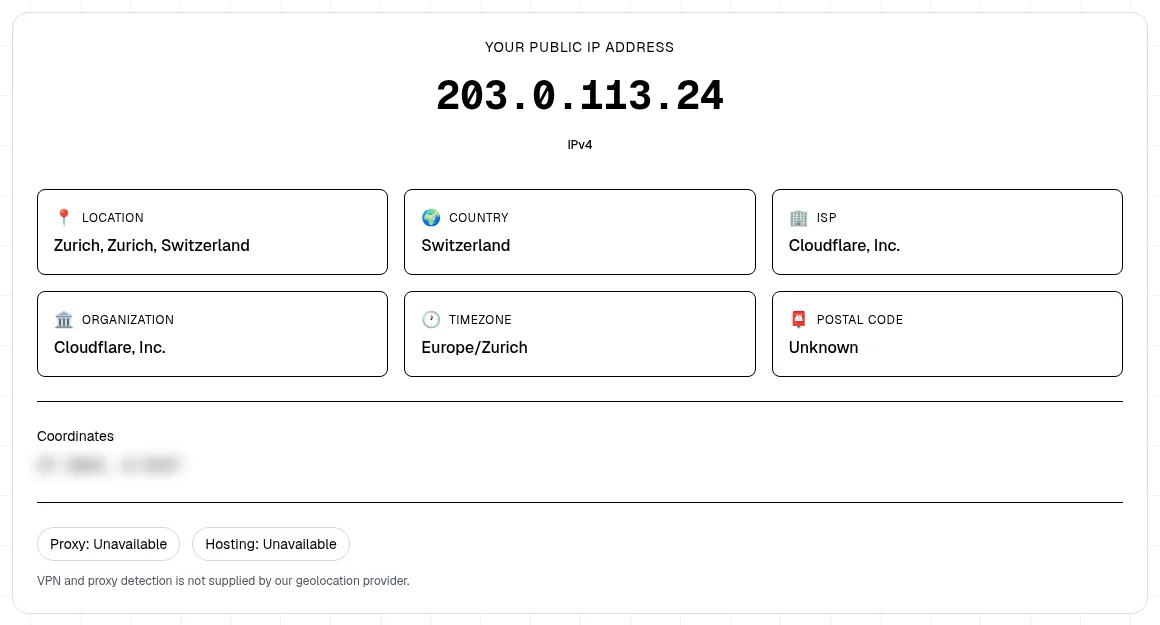
This is a real result from our test machine on 23 Nov 2026, with the real address replaced by a documentation IP. It names Cloudflare, Inc., not a home internet provider, because that machine's browser traffic leaves through a Cloudflare network. On your phone, the ISP line should name your home provider while you are on Wi-Fi. If it names your mobile carrier, you are not using the Wi-Fi at all. If it names a VPN company, turn the VPN off while you test, because a VPN changes the address websites see.
Step 4: Slow or dropping, not dead
If Wi-Fi works but crawls or drops, run our speed test next to the router and again in the room where it fails. A big gap between the two points to range, walls or interference, not your plan. A low result next to the router, or on a cable, points to the line. Read what a speed test measures before comparing the numbers with your plan.
Step 5: When to call your provider
Call when every device fails, a cable fails too, the modem's internet light stays off or red after one restart, and a phone on mobile data still loads pages. First check whether neighbors see the same thing: is the internet down in my area covers outage pages and maps. If the line works but one site will not load, the problem is narrower; see whether a site is down or it is a DNS issue.